VMware Workstation Pro lets you run Windows, Linux, and BSD virtual machines on a single Windows or Linux PC. VMware Workstation Pro 25H2 is great for developers and system admins, for software development, testing and deployment.
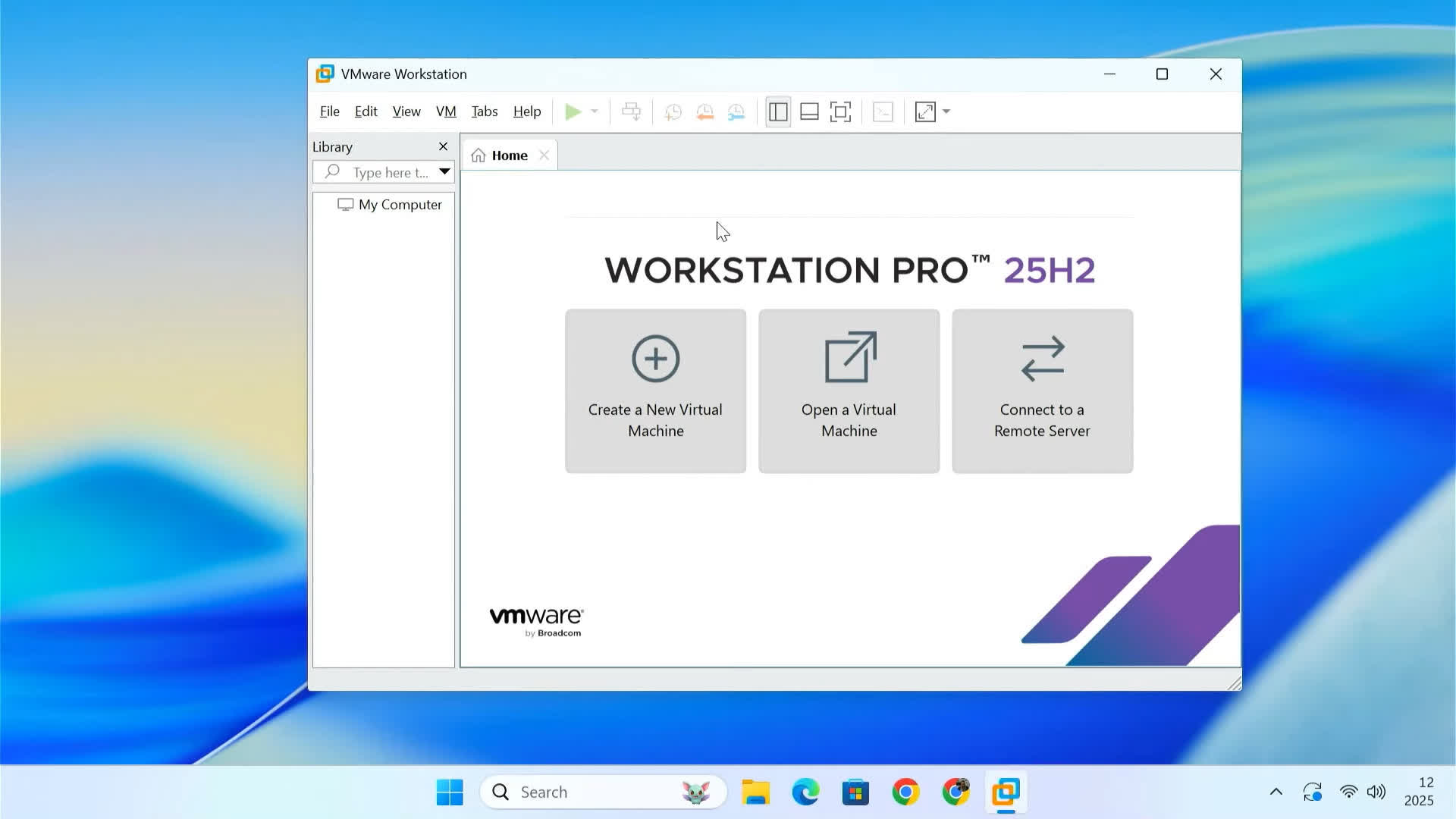
Build, test and demo software across an array of different devices, platforms and clouds. IT professionals, developers and businesses rely on Workstation Pro every day to support their projects and customers. Workstation Pro makes it easy to run complex local virtual environments to simulate operating systems, platforms and clouds, all from the same desktop PC.
What are the different editions of VMware Workstation?
The VMware Workstation product line consists of two products: Workstation Pro and Workstation Player. Collectively they are referred to as 'VMware Workstation,' and when there are differences, they are called out.
Is Workstation Pro still a paid product or is it free now?
The licensing model changed in 2024 and Workstation Pro became free for personal use, and later was extended to all users, including commercial ones.
What are the differences between Workstation Pro and Workstation Player?
Workstation Pro and Workstation Player share the same hypervisor technology, but with unique user interfaces for different types of use.
Workstation Pro is designed for IT professionals and developers, providing a more fully featured interface with capabilities for running multiple virtual machines at the same time. Workstation Pro can provide and configure virtual networking, create clones, connect to vSphere, show multiple VMs at the same time in a tabbed UI and more.
Workstation Player is designed for a single graphical VM operation, or for command line operation with 'vmrun' for running a different operating system in a secure isolated sandbox on a PC.
Do I need to dual boot or repartition the disk?
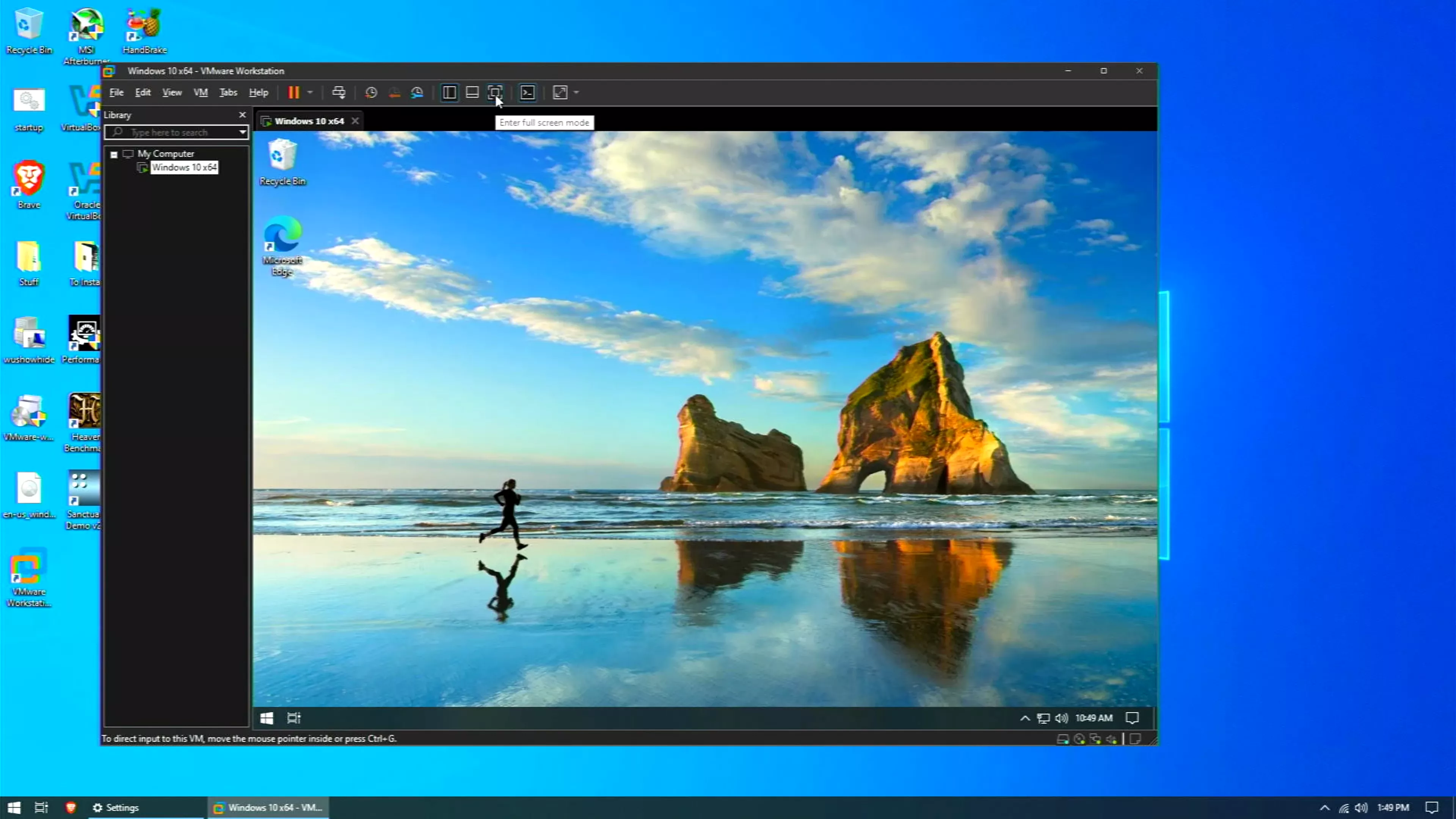
No, VMware Workstation uses your computer's file system and creates files that map to a virtual machine's disk drives, so there is no need to create a partition for each operating system. If you already have another OS with dual boot installed on your computer, you can use VMware Workstation to run the other OS in a virtual machine on your host operating system.
Instead of dual booting, you can run both operating systems simultaneously and seamlessly switch from one operating system to another with a click of your mouse.
What's the best way to move a VM from one host to another?
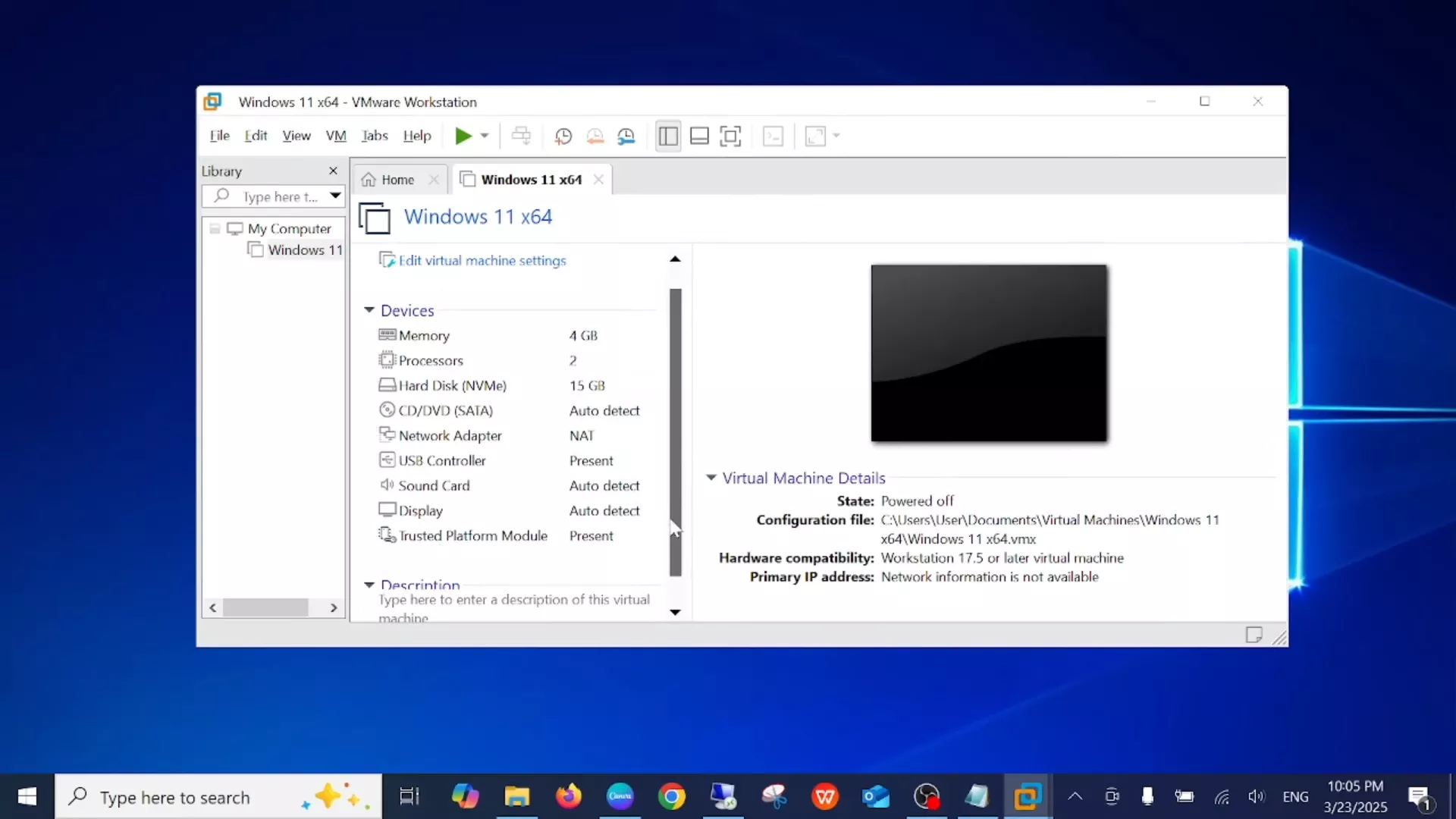
You can simply copy the entire VM folder (including the .vmx and .vmdk files) to the new host and open it using VMware Workstation Pro. Make sure both systems use compatible versions and consider choosing "I moved it" rather than "I copied it" when prompted, to preserve MAC addresses and settings.
What's a good strategy for sizing virtual CPUs and cores per socket when creating a VM?
Most recommend using a single virtual CPU "socket" and then assigning multiple cores to it (e.g. 1 × 4 cores) rather than splitting across many sockets, unless specific software licensing dictate otherwise.
Why does my VM run slowly, and how can I improve performance?
Common reasons include insufficient host resources (RAM, CPU), lack of virtualization support (VT-x/AMD-V not enabled), or running multiple intensive VMs simultaneously. Performance can often be improved by allocating more resources, installing VMware Tools, enabling hardware virtualization in BIOS, and using SSD storage.
Features
Run VMs and Containers on a Single PC
Deploy local OCI containers and Kubernetes clusters with VM isolation, virtual networking and virtual resource options through the new vctl CLI tool.
Develop and Test for Any Platform
Fix more bugs and ship quality code on time using Workstation Pro in development and testing. Virtualize nearly any x86 operating system available today on a desktop PC.
Enjoy Baked-In vSphere and ESXi Support
Run ESXi and vCenter as virtual machines on the desktop, and connect to a remote vSphere environment for quick VM access and basic management tasks.
Run Secure and Isolated Desktops
Run a secure second desktop with different privacy settings, tools and networking configurations for online protection, or to take "snapshots" that can be restored later.
Expand the Power of Your PC with Virtualization
Discover the true power and flexibility of your desktop or laptop computer with VMware Workstation. Reduce hardware costs by 50% or more by running multiple operating systems simultaneously on a single PC. Automate and streamline tasks to save time and improve productivity. Join the millions worldwide who use Workstation to:
- Host legacy applications and overcome platform migration issues
- Configure & test new software or patches in an isolated environment
- Automate tasks for software development and testing
- Demonstrate multi-tier configurations on a single PC
Use Multiple Operating Systems Concurrently on the Same PC
VMware Workstation makes it simple to create and run multiple virtual machines on your desktop or laptop computer. You can convert an existing physical PC into a VMware virtual machine, or create a new virtual machine from scratch. Each virtual machine represents a complete PC, including the processor, memory, network connections and peripheral ports.
VMware Workstation lets you use your virtual machines to run Windows, Linux and a host of other operating systems side-by-side on the same computer. You can switch between operating systems instantly with a click of a mouse, share files between virtual machines with drag-and-drop functionality and access all the peripheral devices you rely on.
Take Snapshots & Videos of your Virtual Machines
With Workstation, you can take a "snapshot" that preserves the state of a virtual machine so you can return to it at any time. Snapshots are useful when you need to revert your virtual machine to a prior, stable system state. Workstation displays thumbnails of all your snapshots on a single screen, making it easy for you to track and revert to a previously saved snapshot.
You can even use Workstation 6 to record and play video files that capture all changes to a virtual machine over a period of time. This function is exclusive to VMware Workstation and is incredibly useful for software debugging, Help Desk forensics, sales demonstrations and training.
Run an Entire Multi-tier System on a Single Host Computer
Run multi-tier enterprise applications on a single piece of hardware by managing network-connected virtual machines with the Teams feature of Workstation 6. Teams let you create virtual network environments that include client, server and database virtual machines.
With Workstation Teams, you can turn an entire multi-tier environment on and off with a single click of the mouse button. Workstation displays live thumbnails of all connected virtual machines, enabling you to easily identify and switch between the virtual machines associated with a team.
Clone your Virtual Machines to Accelerate Deployment
Installing operating systems and applications can be time consuming. With clones, you can make many copies of a virtual machine from a single installation and configuration process. This capability makes it fast and simple to distribute standardized computing environments to employees and students, or to create a baseline configuration for testing.
Take Your Virtual Machines With You
New to Workstation is the ability to create and deploy secure virtual machines (called ACEs) with the ACE Option Pack. Mobility is one of the primary benefits of this option pack, as it enables users to securely take their desktops with them on portable media devices such as USB thumb drives.
What's New
VMware Workstation Pro 25H2u1
- Re-enabled the Check for updates option to check for new releases.
- This release resolves CVE-2026-22715, CVE-2026-22716, CVE-2026-22717, and CVE-2026-22722. For more information on these vulnerabilities and their impact on Broadcom products, see VMSA-2026-0002.
Resolved Issues
- When running on a Windows host with Hyper-V enabled, VMs might quit unexpectedly
- When running on а Windows host with Hyper-V enabled, Workstation Pro 25H2 does not support nested virtualization. Virtual machines configured with "vhv.enable = TRUE" might possibly report "unrecoverable error". This issue is resolved in this release. When powering on a VM that is configured to use nested virtualization on a host with Hyper-V, an error message is displayed.
- On Windows hosts, guest operating systems sometimes appear to be slow and unresponsive to input
- When receiving input by the guest operating system, VMware Workstation on Windows hosts might fail to redraw the guest screen, creating the perception of the guest operating system being slow. Therefore, when updating visual elements, the guest operating systems might seem unresponsive to user input or the guest screen seems to lag. This issue is fixed in this release.
- When moving the mouse cursor between monitors in full screen mode, the mouse cursor disappears
- When using Workstation Pro on a Windows host that has focus follows mouse enabled and a virtual machine is in full screen mode with multiple monitors, moving the mouse cursor between monitors results in the mouse cursor disappearing. This issue is resolved in this release.
- Vulkan presentation mode might cause several bugs in some Windows host hardware configurations
- VMware Workstation Pro 25H2 enabled a new Vulkan presentation mode that exhibited several bugs in some host hardware configurations, for example:
- When powering on a virtual machine, the display of the Windows host might permanently dim until the host is rebooted.
- When entering full screen mode on a Windows host, the toolbar is no longer visible.
- This issue is resolved in this release and the Vulkan and DirectX 12 presentation modes are deactivated by default.
- On Windows hosts, full screen mode displays a 1 pixel white border around the screen of the guest operating system
This issue is resolved in this release.
- After rebooting a host, virtual machines with Windows XP or Windows Vista operating systems that have 3D graphics acceleration enabled display a black screen or a low-resolution screen without full color support
- This issue is resolved in this release.
- When attempting USB pass-through on Windows hosts, the USB devices might not be listed, intermittently disconnect, or fail to connect
- When attempting USB pass-through on a Windows host, a sudden disconnection from USBArbitrator might occur and the enumerated device information is not available. This issue is fixed in this release.
Known Issues
- After downgrading the hardware compatibility of an encrypted virtual machine with vTPM from hardware version 22, the virtual machine fails to start
- Downgrading the hardware compatibility of an encrypted virtual machine with vTPM, that was created by using VMware Workstation 25H2 and configured with hardware version 22 to any lower version is not supported. A new vTPM version is introduced with hardware version 22 that is incompatible with older hardware versions. If downgrade is attempted, the virtual machine fails to start.
- Workaround: None.
VMware Workstation Pro 25H2 Chaneglog
We're moving away from traditional version numbers (e.g., Workstation 17.6.x, Fusion 13.6.x) and adopting a new naming format – 25H2 – that reflects the year (2025) and the half of the year (H2). This provides consistency across releases and ensures clarity for customers.
The 25H2 release brings new tools and capabilities that simplify automation, enhance compatibility, and make day-to-day tasks faster and more reliable.
- dictTool (Workstation & Fusion) A new command-line utility that allows customers to inspect and edit VMware configuration files (.vmx, preferences). This provides more flexibility and automation for advanced users - a capability that was highly requested by our community.
- USB 3.2 Support (Workstation & Fusion) Faster data transfers and improved compatibility with modern USB devices.
- Hardware Version 22 (Workstation & Fusion) Ensures virtual machines (VMs) take advantage of the latest hardware capabilities for improved performance and compatibility.
- Hyper-V/WHP Detection (Workstation only) Helps to identify the VM's running mode in Workstation by clearly showing Hyper-V/WHP status.
Expanded CPU and OS Support
Running the latest workloads and platforms is critical for today's users. Workstation and Fusion 25H2 expand CPU, host, and guest OS compatibility so you can confidently virtualize on the newest technologies.
- New CPU Support (Workstation): Intel Lunar Lake, Arrow Lake, and Meteor Lake.
- New Guest Operating Systems:
- Red Hat Enterprise Linux 10
- Fedora Linux 42
- openSUSE Leap 16.0 (RC)
- SUSE Linux 16 (Beta)
- Debian 13
- Oracle Linux 10
- VMware ESX 9.0 (Workstation: general, Fusion: Intel systems only)
- macOS Tahoe (Fusion: Intel systems only)
- New Host Operating Systems:
- Workstation: RHEL 10, Fedora Linux 42, openSUSE Leap 16.0 (RC), SUSE Linux 16 (Beta), Debian 13
- Fusion: macOS Tahoe (Intel and Apple Silicon)
Bug Fixes and Improvements
25H2 also delivers important refinements that make the platforms more stable, secure, and user-friendly. These fixes address common customer pain points across both Workstation and Fusion.
- Security fixes across both Workstation and Fusion.
- Accessibility enhancements to improve usability.
- Workstation-specific fixes:
- Resolved UI issues on Windows with resizing and window controls.
- Optimized Linux support bundles for easier handling.
- Reduced excessive logging by the VMware Authorization Service (vmauthd) in Windows Event Viewer.
- Option to discard VM suspend states.
- Fixed Linux full-screen crash and Intel GPU 3D acceleration issues.
VMware Workstation Pro 17.6.4 provides the following new capabilities.
This release resolves CVE-2025-41236, CVE-2025-41237, CVE-2025-41238, and CVE-2025-41239.
- For more information on these vulnerabilities and their impact on Broadcom products, see VMSA-2025-0013.
This release resolves CVE-2025-2884.
- Broadcom has evaluated the severity of this issue to be in the moderate severity range.
The 17.6.3 release resolves CVE-2025-22224 and CVE-2025-22226. For more information on these vulnerabilities and their impact on Broadcom products, see VMSA-2025-0004.
- VMware Workstation Pro no longer requires a license key and is now free for commercial, educational, and personal use.
- VMware Workstation Pro 17.6.3 provides various bug fixes requested by customers.
- We're thrilled to announce a significant change that reflects our commitment to making VMware Fusion and VMware Workstation more accessible than ever. Starting November 11, 2024, these powerful desktop hypervisor products will be available for free to everyone – commercial, educational, and personal users alike.